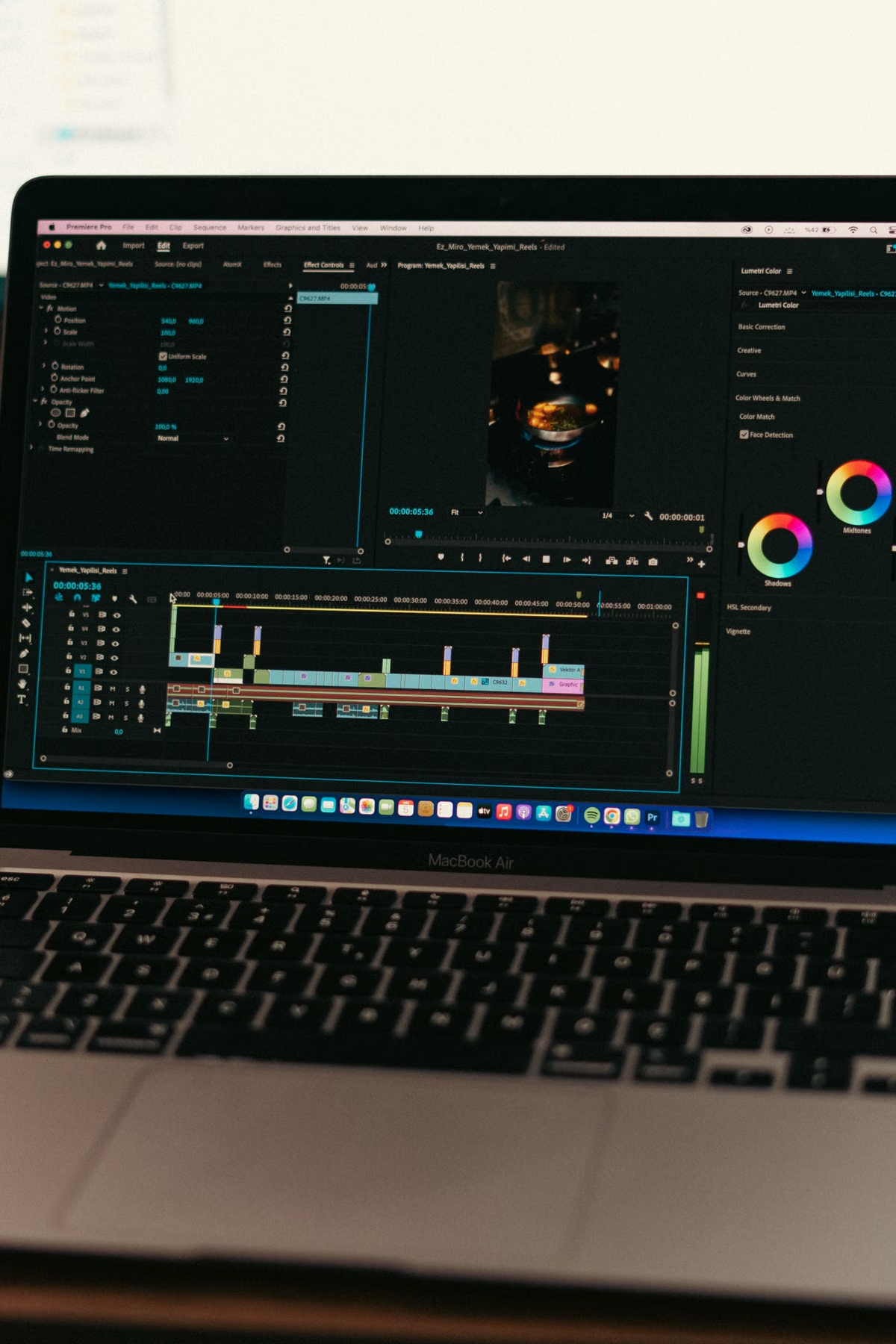
A Windows user searching for a Final Cut Pro 12.3 installer will not find an official native Windows download.
The fastest safe action this week is to stop evaluating third-party installers. Use a Windows-native editor for a new, open-format project; use a remote Mac for occasional work that must preserve the Final Cut Pro library; choose a local Mac for frequent production or hardware-dependent work.
This guide is for:
- Creators checking whether a downloaded installer is genuine.
- Editors who received a Final Cut Pro library and must preserve native editing.
- Freelancers and small teams comparing Windows tools, a remote Mac, and a local Mac.
Last updated September 13, 2026. Platform and version details were checked against the listed Apple and Microsoft documentation.
Platform support: official Mac access versus Windows download claims
Final Cut Pro 12.3 is officially associated with Apple’s Mac and eligible iPad platforms. The confirmed release date for version 12.3 is June 30, 2026, according to the official release information supplied for this review. The official product page does not provide a native Windows installation path.
Check the platform before checking the file name. A page that says “Final Cut Pro 12.3 for Windows” may be describing a rumor, a modified package, a remote-access service, or an unrelated download. None of those labels confirms Apple support.
Use the official Final Cut Pro product page to verify the supported product family. Use the official Final Cut Pro release notes to check version information and platform details. The official Final Cut Pro guide for version 12.3 is also useful for separating a Mac workflow from a Windows claim.
| What is being checked | Confirmed route | What it means for a Windows user |
|---|---|---|
| Final Cut Pro 12.3 application | Official Apple Mac distribution | No native Windows installer is confirmed |
| Final Cut Pro on eligible iPad devices | Official Apple-supported iPad route | This is not a Windows desktop version |
| A third-party Windows package | Not confirmed by Apple | Do not treat the package as genuine |
| A remote Mac session | A real Mac accessed remotely | Windows can control the Mac, but Final Cut Pro is still running on macOS |
The distinction matters. Remote control changes how the application is accessed. It does not turn Final Cut Pro into a Windows application.
Installer safety: verified source versus a package with a familiar name
A normal creator does not need to inspect code to reject a risky installer. Start with the source and publisher. Then compare the claimed platform with Apple’s product documentation.
Use this verification sequence:
- [ ] Open the official product page rather than a search advertisement or download mirror.
- [ ] Confirm that the publisher, application name, and platform agree.
- [ ] Check whether the download route matches Apple’s documented distribution path.
- [ ] Reject packages that require a key generator, patch, crack, or disabled security control.
- [ ] Scan the file with current security software, but do not treat a clean scan as proof of authorization.
- [ ] Do not sign in with an Apple account inside an unknown installer.
- [ ] Never open an unknown package on a computer containing client media or project libraries.
- [ ] Record the source URL and package details before testing anything.
Microsoft’s guidance on protecting a PC from unwanted software supports a cautious approach to unknown and potentially unwanted applications. That guidance helps with system safety. It does not certify that a third-party Final Cut Pro package is licensed, compatible, or supported by Apple.
A security warning is not the only failure condition. An installer can appear harmless and still be unauthorized, incompatible with the project library, or unsafe for client credentials and media.
The practical risk is larger than malware. A modified application can affect account access, exported files, original footage, library databases, plugin credentials, and cloud-synced project folders. If a client project is involved, the cost of testing an unknown installer includes missed revisions and unclear responsibility for corrupted files.
Project compatibility: a playable video is not an editable library
The correct question is not simply whether Windows can open the exported video. The question is whether the editor can continue the required work.
A finished video is one delivery object. A Final Cut Pro project may also depend on:
- The original library database.
- Source video and audio.
- Proxy or optimized media.
- Fonts.
- Effects and transitions.
- Motion templates.
- Plugin settings.
- Timeline metadata.
- Export presets and project history.
These components do not become interchangeable because the final movie plays in a Windows media player. A client may ask for a small title change, a replacement shot, a new audio mix, or a second export. That request can require the original Mac-based workflow.
Apple’s Final Cut Pro media and project guidance provides the official context for libraries, media, and project handling. Use it when defining what must travel with an edit. Do not promise native continuation based only on an exported MP4 or a screenshot of the timeline.
There are three useful delivery levels:
- Finished media only: Windows can usually review, archive, and deliver the exported file with an appropriate player.
- Interchange handoff: A standard timeline or media package may help another editor rebuild part of the work, but effects, fonts, transitions, and timing may not survive exactly.
- Native continuation: The original Final Cut Pro library and its dependencies must remain available in a compatible Mac environment.
That is why a Windows-native replacement can be correct for a new project but wrong for a client revision. The replacement may produce a good final video while failing the requirement to preserve the original editable project.
Windows tools, remote Mac, and local Mac: compare the measurable fit
A Windows-native editor makes sense when the project can be defined around common delivery files rather than a required Final Cut Pro library. This avoids adding an operating-system dependency to a project that does not need one.
A remote Mac makes sense when the project already exists in Final Cut Pro and access is occasional. The real Mac runs the application. Windows provides the screen, keyboard, and pointer connection. This arrangement can preserve native library access without requiring the editor to purchase a permanent workstation.
A local Mac makes sense when editing is part of regular production. It also becomes stronger when the workflow depends on local media storage, professional monitoring, capture hardware, specialized audio devices, or predictable offline access.
| Decision metric | Windows-native workflow | Remote Mac | Local Mac |
|---|---|---|---|
| New project with open delivery format | Strong fit | Possible, but adds remote access | Strong fit |
| Existing Final Cut Pro library | Weak fit unless rebuilt or exchanged | Strong fit for occasional editing | Strong fit |
| Frequent revisions | Depends on the chosen editor | Suitable if network and access remain stable | Strongest for routine work |
| Large local media collection | Convenient if already on Windows | Requires a clear transfer and storage plan | Convenient when storage is local |
| Dedicated capture or monitoring hardware | Usually depends on Windows compatibility | Must be tested; remote mapping is not automatic | Strongest when hardware is Mac-compatible |
| Occasional access | Avoids permanent hardware purchase | Often the most proportionate route | May leave unused hardware |
| Offline work | Strong fit | Limited by remote access and data location | Strong fit |
The table is a decision aid, not a performance promise. Remote editing depends on connection quality, media placement, display response, audio routing, and the way files are transferred. A remote session should not be described as zero-latency, perfectly color-accurate, or automatically compatible with every external device.
Remote Mac access: validate the workflow, not just the application launch
A remote Mac can run the official Mac application while a Windows user controls it through a remote connection. That solves the platform question, but it introduces operational checks.
Run this test before accepting a deadline:
- [ ] Confirm that the remote Mac has a supported macOS environment and the required Final Cut Pro access.
- [ ] Confirm how the library and original media will reach the Mac.
- [ ] Open a copy of the library, not the only original.
- [ ] Relink missing media and record the folder structure used.
- [ ] Check fonts, plugins, effects, and Motion templates before making timeline changes.
- [ ] Scrub representative sections of the timeline and check response during ordinary editing.
- [ ] Test audio monitoring with the actual review method.
- [ ] Export a short sample and retrieve it to the Windows workstation.
- [ ] Open the exported file on the intended delivery device.
- [ ] Confirm how the revised library or project files will be returned and backed up.
Material transfer is often the hidden cost. A library can open while source media remains offline. An effect can appear in the timeline while a required plugin is missing. An export can complete while the review team cannot retrieve the file efficiently.
For that reason, test one representative sequence before transferring the whole production. If the source media is large, establish the storage location and transfer method before promising a delivery date. If audio review is important, test headphones or monitoring through the actual remote setup. Do not infer professional color accuracy from a functioning remote desktop.
MESHLAUNCH provides access to hosted Mac environments through remote workflows. The MESHLAUNCH Mac access page is the appropriate place to review the available service path. The product should be evaluated as a real Mac environment, not as a Windows installer workaround.
Usage frequency and project responsibility decide the final route
The decision becomes clearer when the project is described with six fields:
- Project source: new Windows project or existing Final Cut Pro library.
- Deliverable: finished video, interchange package, or native editable library.
- Revision cycle: one export or repeated client changes.
- Media scale: local files, transferred files, or a shared storage workflow.
- Peripheral dependency: capture, monitoring, audio, or other physical hardware.
- Usage frequency: one project, occasional access, or routine production.
Use the following rule:
- Choose a Windows-native workflow when the project is new, the delivery format is open, and no client requires the original Final Cut Pro library.
- Choose a remote Mac when native editing is required but access is occasional, revisions can be completed asynchronously, and the media transfer process is manageable.
- Choose a local Mac when Final Cut Pro is used regularly, media must stay locally available, or the workflow depends on professional peripherals and predictable offline access.
Do not decide based on whether the application opens. Decide based on whether the full representative project can be opened, modified, previewed, exported, and returned without breaking the client’s requirements.
FAQ: the questions behind the download search
Does Final Cut Pro have an official Windows version?
No official native Windows version is confirmed in the Apple sources checked for this guide. Apple lists Final Cut Pro for Mac and eligible iPad devices, while the Mac download path is tied to Apple’s supported platform and licensing flow. A webpage or installer claiming to provide Final Cut Pro for Windows is therefore not proof of Apple support.
Are Final Cut Pro Windows installers found online safe?
Treat them as untrusted unless the publisher, download source, and official product documentation all match. A clean antivirus result does not establish Apple authorization or project compatibility. Modified installers, cracks, and key generators can expose account credentials, media, libraries, and project files, so they should not be used for production work.
How can Windows users continue editing a Final Cut Pro project?
Keep the original library on a compatible Mac environment. A finished video can play on Windows, but the library, source media, plugins, fonts, effects, and templates are separate dependencies. For an occasional project, a remote Mac can provide the native environment. Test media relinking, timeline playback, revisions, and export before promising a delivery date.
Should occasional Final Cut Pro users rent or buy a Mac?
For occasional access, a remote Mac is usually easier to justify because it avoids buying a permanent workstation for a short project. A local Mac becomes more suitable when editing is frequent, media stays on local storage, color and audio monitoring require dedicated hardware, or production depends on capture devices and other peripherals. Validate one representative project first.
Our recommendation for a safe Final Cut Pro workflow
If the current Windows workflow only needs ordinary finished videos, a Windows-native editor avoids unnecessary platform cost. If the job requires a Final Cut Pro library, the Windows workaround has three real weaknesses: it cannot provide a confirmed native application path, it creates security and licensing uncertainty, and it can break during media relinking or client revisions. A remote Mac is the more controlled short-term route because the application remains on a real Mac while the editor works from Windows.
Before committing, test one representative library from login through media relinking, timeline changes, preview, export, and file retrieval. If that test passes and access is occasional, review the available MESHLAUNCH Mac rental options for a period that matches the project. If Final Cut Pro is used every week or depends on local capture and monitoring hardware, compare that cost and control against buying a local Mac instead.