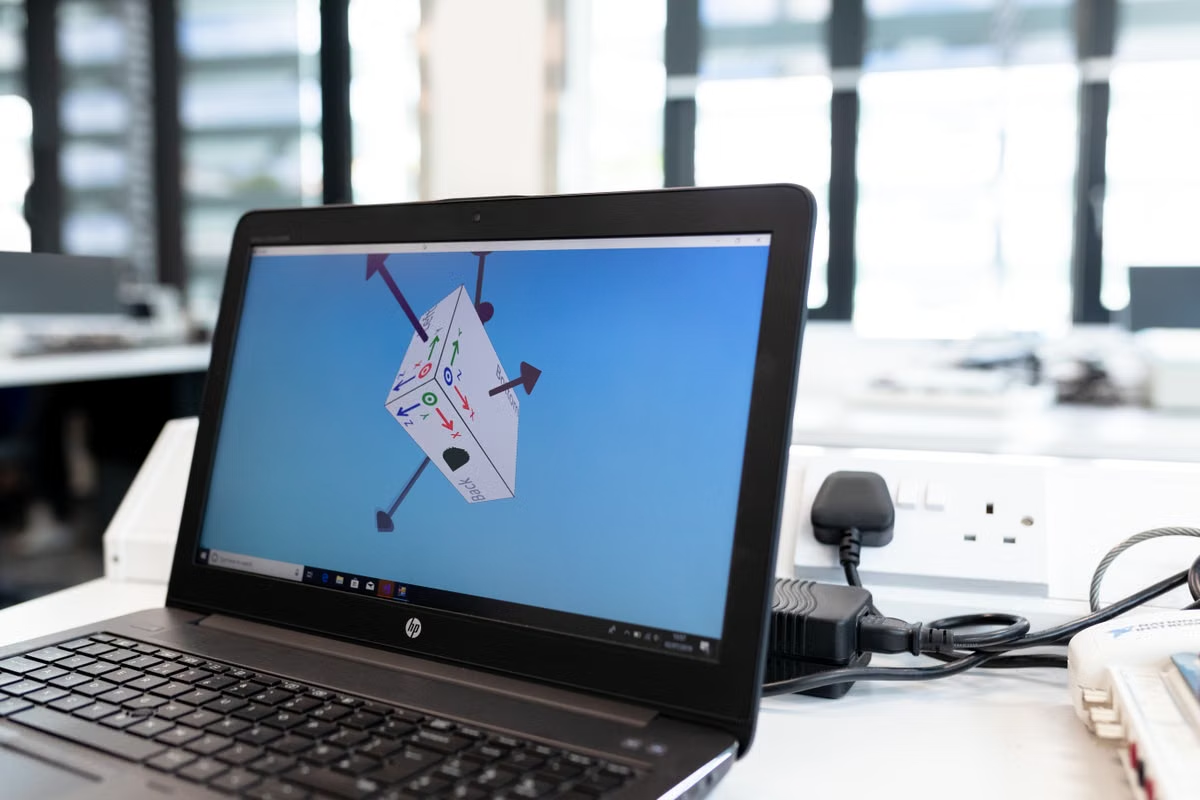
A Windows designer can open a Sketch file in the browser but still be unable to change the design.
Fast answer: use the Sketch web app for review and handoff, a remote Mac for occasional full editing, and a local Mac when Sketch is your daily production tool.
Who should use this guide?
This is for developers, clients, project managers, and other collaborators who only need to inspect or comment on Sketch files.
It also covers freelance designers who occasionally inherit a Sketch project, plus small creative teams deciding whether to provide a remote Mac, buy a Mac, or change their design workflow.
Windows access depends on the job, not the file extension
The phrase “open a Sketch file” hides several different tasks.
A Windows user may need to:
- Review a screen with a client.
- Leave comments for a designer.
- Inspect spacing, colors, and typography.
- Export approved assets.
- Fix a symbol, component, or layout.
- Build and maintain the design file every day.
The first four tasks can usually stay in the browser. The last two require access to the native Mac application.
Sketch’s official product documentation separates the Mac app from the web app. The Mac app is the design environment. The web app is built for viewing, inspecting, commenting, prototyping, and collaboration from a browser on major operating systems. (sketch.com)
That distinction answers the main question:
Can Sketch run on Windows? Yes for browser-based collaboration. No for installing and using the full native design application directly on Windows.
The current setup also has two important boundaries:
- The Mac app requires macOS Sonoma 14.0 or newer for current releases.
- Sketch states that the Mac app runs on macOS only and is not supported in a virtual machine.
Those are platform requirements, not performance recommendations. A Windows PC cannot become a supported native Sketch workstation simply by downloading the Mac installer or placing macOS in an unsupported virtual environment. (sketch.com)
Can Windows install Sketch directly?
No. Windows cannot install the native Sketch design application as a supported desktop app.
A Windows user can still sign in to a Sketch Workspace through a browser. That route is appropriate for viewing and collaboration, but it does not provide the same canvas editing environment, plugin access, or document-authoring workflow as the Mac app.
Do not treat a browser preview as a hidden Windows version of Sketch. The browser is a collaboration layer. It is not a complete replacement for the Mac application.
Role one: reviewers and delivery partners should stay in the browser
Developers, clients, and project managers usually do not need a full macOS environment.
The browser workflow is sufficient when the task is limited to:
- Viewing pages, frames, and prototypes.
- Checking version history.
- Leaving comments on a canvas or frame.
- Inspecting layers and measurements.
- Reviewing spacing, colors, and typography.
- Exporting permitted assets.
- Confirming that an approved design matches the delivery requirements.
The web app can show the document canvas, pages, comments, version history, and frame specifications. The Inspect panel lets a user select layers and review their properties. Asset export is also available when the document permissions allow downloading and inspection. (sketch.com)
What Windows collaborators do not need
A developer or client does not normally need:
- A Mac computer.
- The native Mac app.
- A full Editor seat if their role is only review.
- Local copies of every working file.
- A remote desktop connection for ordinary handoff.
Sketch documents can use different access roles. Viewers can access a Workspace from a browser and can view, inspect, comment, and download assets when permitted. Editors have access to the Mac app for actual document editing. (sketch.com)
This role split can reduce unnecessary equipment purchases for small teams. One or two people may handle native editing while other team members work through browser review.
Browser review checklist
- [ ] Confirm that the Windows user only needs viewing, comments, inspection, or asset export.
- [ ] Check that the user has access to the correct Workspace or document.
- [ ] Confirm whether asset downloads are enabled.
- [ ] Review the latest starred or approved version.
- [ ] Leave feedback in comments instead of editing a local copy.
- [ ] Record any missing font, asset, or interaction issue for the primary designer.
- [ ] Keep the native document owner responsible for final changes.
A browser workflow becomes the wrong choice when the reviewer starts changing layers, restructuring components, or maintaining the design system. At that point, the role has changed from Viewer to Editor.
Role two: occasional editors need a complete Mac environment
Freelancers and small studios often sit in the middle.
They may use Windows for most work but occasionally receive:
- An old client project stored as a Sketch document.
- A maintenance request for a legacy interface.
- A short contract that requires Sketch delivery.
- A shared design system that cannot be edited in the browser.
- A client handoff that includes native Sketch libraries or components.
For this group, buying a Mac may be excessive. The correct question is not whether a Mac is useful. It is how often complete Sketch editing is required and how long the project will remain active.
A remote Mac is a reasonable option when:
- The work is temporary.
- The project requires native Sketch editing.
- The designer already owns a capable Windows workstation.
- The user can keep project files in a controlled Workspace or storage workflow.
- The task does not depend on specialized physical peripherals.
- The team can test fonts, plugins, and file synchronization before committing.
A local Mac is usually a better fit when:
- Sketch editing occurs most working days.
- Canvas interaction is the main source of income.
- The designer uses complex Libraries and plugins.
- Large files remain open for long sessions.
- The workflow depends on local displays, tablets, color calibration, or other peripherals.
- The user needs reliable offline access.
Is the Sketch web app enough for editing?
No. The Sketch web app supports collaboration around a document, but complete design editing still belongs to the Mac app.
The official documentation directs users to open a document in the Mac app for editing. Browser users can inspect layers and designs, comment, view prototypes, and export permitted assets, but browser access should not be described as full document editing. (sketch.com)
This is the practical dividing line:
- Review: browser.
- Inspect: browser.
- Comment: browser.
- Export approved assets: browser, if permitted.
- Change layout structure: native Mac app.
- Edit components and Libraries: native Mac app.
- Maintain a production Sketch file: native Mac app.
Can someone modify a Sketch file without owning a Mac?
Yes, but not through the Windows browser alone.
The workable route is to access a real Mac remotely, install or open the native Sketch application there, sign in with the correct account, and work on the file within that macOS session. MESHLAUNCH provides remote access to real Mac hosts through supported remote connection methods, so a Windows computer can act as the client device while the design application runs on macOS.
This is different from unsupported virtualization. Sketch’s own documentation says the Mac app is not supported in a virtual machine. A remote physical Mac keeps the native application on a supported Mac operating system while Windows is used only as the control device. (sketch.com)
For an occasional editor, this can avoid:
- Buying a second computer for a short project.
- Migrating the main Windows workstation.
- Rebuilding the entire design toolchain.
- Paying for hardware that sits unused after delivery.
- Asking every team member to own a Mac.
Before choosing this route, test the actual project. A simple blank document proves very little.
Role three: daily Sketch designers need local interaction first
Professional designers should judge remote access by work pattern, not by whether the application launches.
Daily production depends on repeated canvas actions:
- Selecting small layers.
- Dragging objects precisely.
- Zooming and panning through dense pages.
- Editing text and spacing.
- Navigating nested groups.
- Switching between Libraries and documents.
- Reusing components.
- Opening plugins.
- Reviewing changes while keeping visual context.
These actions are sensitive to input delay, image refresh, network stability, and display quality. A remote Mac may be usable for one project and frustrating for another. The result depends on the connection path, the remote host, the Windows device, the display, and the file itself.
We should not describe remote Sketch as universally smooth or “zero latency.” Those claims require a defined test environment. A credible test should name:
- The project type.
- The file size or complexity category.
- The Windows device.
- The connection method.
- The network type.
- The test date.
- The editing duration.
- The result of saving and exporting.
Is remote Sketch noticeably delayed?
It can be. The answer depends on the network and the interaction pattern.
Reviewing a design in a browser usually tolerates more delay than dragging layers for several hours. Commenting and inspecting are less demanding than repeated canvas manipulation. A remote Mac may work well for a short correction but become tiring during a full production day.
Use a short acceptance test before committing:
- Open the real project, not a sample file.
- Pan across the densest page.
- Zoom in and out repeatedly.
- Select nested layers.
- Edit text.
- Move and resize a component.
- Open the Libraries or plugin workflow required by the project.
- Save a new version.
- Reopen the file.
- Export the expected deliverables.
- Ask another team member to verify the result.
A remote session is a good fit if the task finishes within the planned window and the exported result matches the local workflow. It is a poor fit if the designer repeatedly loses selection context, waits for canvas updates, or changes working habits to compensate for the connection.
Important: Do not transfer fonts or plugins blindly. Confirm licensing, installation permissions, file ownership, and team policy before placing project assets on a remote Mac.
Role four: teams should separate editing from collaboration
A small design team does not need to give every person the same environment.
A useful division looks like this:
- Primary designer: native Mac access for creating and editing.
- Second designer: native Mac access when responsible for production changes.
- Developer: Windows browser access for inspection and asset handoff.
- Client: browser access for review and comments.
- Project manager: browser access for version tracking and approval.
- Freelancer: temporary Mac access when a project requires native editing.
This arrangement keeps full editing capacity with the people who need it. Everyone else can use the browser.
Permissions still require deliberate setup. Workspace documents are private by default, and access depends on membership or invitation. Document permissions can restrict editing and control whether viewers can download and inspect assets. (sketch.com)
Small-team handoff checklist
- [ ] Name the person responsible for the master Sketch document.
- [ ] Define who can edit and who can only view.
- [ ] Confirm the client’s comment and review access.
- [ ] Verify whether developers can inspect and export assets.
- [ ] Store the approved version in the intended Workspace location.
- [ ] Check that Libraries and shared resources belong to the correct account.
- [ ] Document the required fonts and plugins.
- [ ] Decide how temporary remote access will be removed after delivery.
- [ ] Confirm who owns the final file and version history.
- [ ] Test opening the final document from a second account.
The team should not solve a role problem with hardware for everyone. Give native Mac access to the people editing the source file. Give browser access to everyone reviewing or delivering around it.
First step: classify the work before choosing hardware
Use this decision path before purchasing or renting anything.
Choose the Sketch web app when
- [ ] The task is review, approval, or client feedback.
- [ ] The user needs comments but not layer changes.
- [ ] The user needs measurements or asset inspection.
- [ ] The user can work from the latest Workspace version.
- [ ] The user does not need plugins or Libraries editing.
- [ ] Browser-based access is acceptable for the whole task.
Choose a remote Mac when
- [ ] Full Sketch editing is needed only occasionally.
- [ ] The project has a defined start and end date.
- [ ] The designer already has a Windows computer for regular work.
- [ ] The real project passes a remote editing test.
- [ ] Required fonts and plugins can be installed legally.
- [ ] The workflow does not depend on physical Mac-only peripherals.
- [ ] The user wants to avoid buying a Mac for temporary demand.
MESHLAUNCH lets users review its available remote Mac access options before committing to a longer project setup. The important comparison is not “Windows versus Mac” in the abstract. It is “browser review versus complete native editing for this specific project.”
Choose a local Mac when
- [ ] Sketch is used most working days.
- [ ] The designer edits complex files for long sessions.
- [ ] Precise pointer response is central to the work.
- [ ] Plugins and Libraries are part of the daily process.
- [ ] Offline work matters.
- [ ] Local displays, tablets, color workflows, or other peripherals are required.
- [ ] The project pipeline is continuous rather than temporary.
A local Mac creates fewer moving parts. It also creates a hardware purchase, maintenance obligation, and longer replacement cycle. That trade-off is justified when Sketch is the main production tool.
The cost of choosing the wrong access model
The browser-first option has a clear limitation: it cannot replace native editing.
A remote Mac has different hidden costs:
- Connection quality becomes part of the design workflow.
- Fonts and plugins need separate validation.
- File synchronization must be checked.
- Account permissions can block editing or exporting.
- The remote screen may not match local display conditions.
- A failed connection can interrupt a deadline.
A local Mac has its own costs:
- Higher upfront hardware spending.
- A device that may be underused after a short project.
- Migration and setup time.
- Ongoing maintenance.
- Less flexibility when the designer changes location or team.
This is why task frequency matters more than a generic “best option” ranking.
If complete editing is needed for a short contract, a remote Mac is often easier to justify than buying a new computer. If Sketch is the core tool every day, local hardware usually removes enough workflow uncertainty to justify the commitment.
MESHLAUNCH’s Mac rental availability by region can be reviewed when a project needs a temporary real Mac rather than a permanent purchase. We recommend checking the rental period, connection method, account access, and project acceptance process before moving production work.
Final decision: browser, remote Mac, or local Mac?
Use the following rule:
- Only viewing, commenting, inspecting, or exporting: choose the Sketch web app.
- Occasional native editing: test a remote Mac against the real project.
- Daily Sketch production: prefer a local Mac.
- Mixed team roles: give editors native Mac access and everyone else browser access.
- No supported Mac environment available: do not treat Windows virtualization as the default answer, because Sketch does not support the Mac app in virtual machines. (sketch.com)
The current Windows browser approach is efficient for review, but it has three real limits: no complete native editing, no dependable replacement for Mac-based plugins and Libraries work, and no way to guarantee that a complex production task will fit inside the browser workflow. A local Mac removes those limits but may leave temporary users paying for hardware they barely use.
For a short Sketch project, the practical next move is to count the days that require complete editing, identify the files and plugins involved, and run one acceptance test before buying equipment. If the work is temporary, renting a real Mac from MESHLAUNCH can provide the missing macOS environment without turning a short assignment into a permanent hardware purchase.