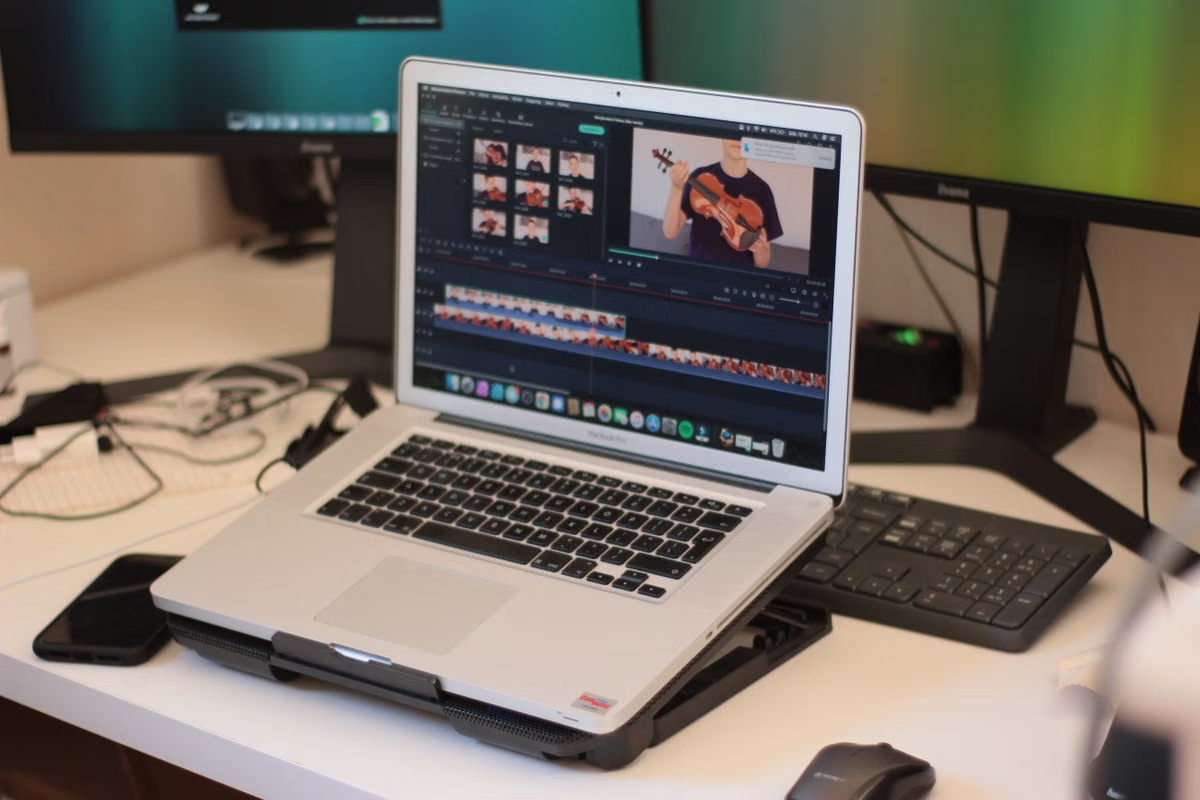
Final Cut Pro iPad vs Mac is a role-based choice: use iPad for field capture, mobile rough cuts, and lightweight short videos; use Mac for complex editing, finishing, and dependable client delivery. If a Windows user only needs Mac software for occasional finishing, run a dual-track workflow with local preparation and a remote Mac.
This week’s action: choose one real project, identify the delivery-critical steps, and test the iPad-to-Mac handoff before committing the whole job to one platform.
This guide is for creators who shoot away from the desk and want to publish from an iPad. It is also for freelance editors handling client timelines, Windows users without a local Mac, and small teams deciding who should work on which device.
The short decision: match the platform to the person responsible
The same Final Cut Pro project can justify different devices at different stages. A mobile creator may value touch input and immediate sharing more than a complete desktop workflow. A lead editor may value recoverability, predictable media access, and a clean delivery path more than portability.
We would make the first split this way:
- Choose iPad when the work is captured on location, edited quickly, and delivered as a short social video.
- Choose Mac when the project includes complex timelines, repeated client revisions, detailed finishing, or formal delivery.
- Choose a dual-track workflow when footage and notes can be prepared on iPad or Windows, but the final edit must happen in the Mac version.
- Choose a remote Mac when Mac access is occasional and the work does not depend on physical camera connections, strict on-site color monitoring, or local peripherals.
The important distinction is simple: an iPad can complete a finished piece without providing every capability or handoff condition of Final Cut Pro for Mac.
Mobile creators: iPad wins when speed matters more than completeness
For travel videos, social clips, event snippets, and same-day publishing, Final Cut Pro for iPad can be the better primary workstation. The value is not only the device size. Touch interaction changes how a creator reviews clips, trims a sequence, marks a moment, and shares a result while away from a desk.
Apple’s current product and support material documents iPad workflows for importing media, editing, and sharing. Review the current Final Cut Pro for iPad feature and storage guidance before treating a specific feature as available in production.
A field workflow is a strong iPad fit when these conditions are true:
- The source footage is already accessible on the iPad.
- The edit has a short or moderate timeline.
- The delivery target is a social platform or review link.
- The creator can accept a mobile-first interface.
- The project does not rely on a Mac-only finishing step.
- The team does not need every source asset stored in a shared desktop library.
Apple Pencil can also make clip selection and timeline interaction feel more direct for some editors. That is a workflow benefit, not proof that the iPad has the same operational envelope as a Mac. The difference appears when a project grows, when media must be handed to another editor, or when the output must survive formal client review.
For mobile footage, import discipline matters. Apple’s iPad media import guide explains the supported process. We recommend confirming where the media is stored before editing. A project that opens on the capture device but cannot be reconstructed by the next editor is not a reliable team workflow.
First step: separate “finished” from “delivery-ready”
A creator can finish a short video on iPad and still discover that the project is not ready for a professional handoff. These are different outcomes.
A finished social clip may only need a clean export, readable captions, music, and a review copy. A client delivery may also require:
- A recoverable project structure.
- Original media or an agreed proxy relationship.
- Consistent naming and version control.
- A timeline that another editor can inspect.
- A dependable export path.
- A clear answer when the client requests revisions.
This is where the Mac decision becomes less about raw performance and more about responsibility. If one person owns the final approval, that person should work in the environment that best supports inspection and recovery.
The project handoff also creates hidden costs. Media may remain in a device-specific location. A missing source file can force a new transfer. A version mismatch can turn a quick revision into a reconstruction task. External drives, shared storage, and monitoring hardware may need separate validation.
Handoff warning: Never make the iPad project your only delivery master until a copy has been opened on the receiving Mac and the timeline, media, and export path have been checked.
Interview and event teams: let iPad start the job and Mac close it
Interview crews and event teams often split responsibilities naturally. One person captures footage. Another selects usable takes. A lead editor shapes the story and prepares the final version.
That division favors a mixed workflow:
- Capture and review footage on location.
- Import the selected media to the iPad.
- Build a string-out or rough cut.
- Add notes, markers, and a first structure.
- Export or transfer the project using Apple’s documented workflow.
- Open a duplicate on the Mac.
- Relink or verify media if required.
- Inspect the full timeline before client delivery.
The first five steps are not a promise that every project will transfer without review. They are a controlled handoff sequence. Apple provides project and backup guidance for Final Cut Pro on iPad and a separate export and sharing workflow. Use those documents for the current interface and supported process.
Before transfer, the team should record:
- Which media is inside the project.
- Which media is stored outside it.
- Where the receiving editor will access the files.
- Which version of Final Cut Pro will open the project.
- Whether the iPad edit is a rough cut or the delivery timeline.
For a multi-camera interview or event edit, the iPad can help the field team reduce the volume of decisions waiting for the lead editor. The Mac remains the safer owner of the final timeline when the team must revise, replace shots, or answer detailed client feedback.
Professional editors: Mac is the safer default for accountable finishing
Freelancers and post-production leads should begin with the delivery contract, not the device advertisement. If the editor is responsible for a complex timeline, multiple revision rounds, final exports, or a project that another professional must reopen, Mac should normally be the default environment.
That does not make the iPad irrelevant. It can still serve as a review, logging, rough-cut, or travel device. The question is whether the iPad is being asked to support the entire job or only the stage where it provides a clear advantage.
Check the current Mac project import instructions for an iPad project before promising a seamless transfer. The official process confirms the supported direction, but a real project still needs validation for media placement, versions, effects, and output requirements.
Mac is the better choice when the project has several of these characteristics:
- The timeline is complex enough that a second editor must inspect it.
- The client expects repeated changes after the first export.
- The source media is spread across managed storage.
- The edit needs detailed finishing and review.
- The project must be archived and reopened later.
- The delivery specification is stricter than a social export.
- The editor needs a stable desktop setup for long sessions.
Apple’s 2026 Final Cut Pro update should be checked against the official June 2026 announcement. We do not carry forward old assumptions about feature parity. A function that appeared in a previous desktop workflow may not be available in the same form on iPad, and a planned feature should not be treated as shipped.
Windows creators: use a remote Mac only for the Mac-dependent stage
A Windows setup can remain useful for file organization, communication, review, and preparation. It becomes a problem when the final edit must be completed in Final Cut Pro for Mac and purchasing a local Mac cannot be justified for occasional work.
In that case, a dual-track workflow is more rational than replacing the whole workstation:
- Prepare and label footage on Windows.
- Keep project assets in a location that the Mac environment can access.
- Upload or transfer a representative project.
- Use the remote Mac for the Mac-dependent edit and export.
- Download the approved output and preserve the project handoff materials.
A remote Mac is suited to editing, finishing, and exporting when the connection is stable enough for the intended interface. It is not automatically suitable for live camera ingest, strict color-critical monitoring, MIDI or audio hardware, or any task that depends on a physical device beside the editor.
The hidden costs are operational:
- Upload time for large source media.
- Remote display latency during precise trimming.
- Storage duplication between Windows and the Mac environment.
- Permission and file-path errors.
- Download time for final exports.
- A second review if the remote session disconnects during a critical stage.
This is why we recommend testing one real project before selecting a rental period. Do not test only a blank timeline. Use representative footage, the expected audio, the intended export setting, and the actual review process.
For a Windows editor who needs a repeatable setup, our Windows Final Cut Pro remote workflow guide can serve as the next planning reference. The correct link target depends on the current site structure, so confirm the workflow page before publishing a team procedure.
Small teams: assign devices by responsibility, not by headcount
A small content team rarely needs every person to use the same platform. The better question is who owns each risk.
| Team responsibility | Preferred starting point | Why | Handoff check |
|---|---|---|---|
| On-site shooter | iPad | Fast review, mobile editing, immediate sharing | Confirm media is accessible to the next editor |
| Social producer | iPad | Efficient short-form assembly and publishing | Confirm required captions, audio, and export path |
| Lead editor | Mac | More dependable environment for complex finishing | Open the transferred project before editing the master |
| Windows-based coordinator | Windows plus remote Mac when needed | Keeps existing workstation while accessing Mac software | Test upload, remote control, export, and download |
| Client reviewer | Any approved review device | Separates approval from timeline ownership | Keep the delivery master with the lead editor |
Apple’s January 2026 Apple Creator Studio announcement should also be consulted when the team is planning access, subscriptions, or application availability. Those relationships can change. We treat the current official documentation as the authority, not an old purchase guide or forum summary.
Use this decision list before assigning a project:
- If the job is captured and published away from a desk, choose iPad first.
- If the iPad edit is only a rough cut and another person owns delivery, choose iPad for the front end and Mac for finishing.
- If the client expects complex revisions or a recoverable project, choose Mac as the master environment.
- If the team already works on Windows and needs Mac access occasionally, test a remote Mac before buying hardware.
- If the project depends on physical capture, specialized monitoring, or local audio equipment, use a local setup unless the remote arrangement is separately proven.
- If the transferred project cannot be opened, relinked, inspected, and exported as expected, return to the Mac-first workflow.
FAQ: platform limits and project handoff
Can Final Cut Pro for iPad replace Final Cut Pro for Mac?
For mobile capture, short social videos, and fast turnaround, it can be the main editing tool. It is not a blanket replacement for the Mac environment. The deciding tests are project complexity, media handoff, required finishing functions, monitoring, revisions, and delivery obligations. Check the current Apple feature pages before assigning a client master to iPad.
Can a Final Cut Pro for iPad project move to Mac?
Apple documents a supported project transfer path from iPad to Mac. Treat it as a handoff that requires inspection, not as a guarantee that every asset and setting will behave identically. Transfer a copy, verify media access, inspect the timeline, confirm the receiving version, and complete a test export before replacing the original project.
How can someone with only Windows complete a Final Cut Pro project?
Keep Windows for preparation, file organization, communication, and review. Use a Mac environment for the Final Cut Pro stage that Windows cannot provide. A remote Mac can fit occasional finishing work, but the workflow must account for media transfer, connection quality, permissions, and export retrieval. A representative project test is more reliable than a theoretical compatibility check.
Is an iPad or Mac better for short-video editing?
An iPad is usually the better field tool when the priority is portability, touch control, mobile footage, and immediate publishing. A Mac is the safer choice when the short video still involves client revisions, multiple sources, detailed audio work, or a formal delivery process. Mixed work is valid when the iPad handles capture and rough editing while Mac handles approval.
Which Final Cut Pro work must be done on Mac?
Do not rely on a permanent list because Apple can change the product between releases. Mac should be treated as the safer target for complex finishing, demanding handoff, desktop-centered storage, specialist monitoring, and delivery workflows that the iPad documentation does not confirm. Verify the current official feature list and test the exact project before production.
Recheck these facts before committing a 2026 project
This is a time-sensitive comparison. Last updated August 20, 2026; facts checked against Apple’s Final Cut Pro product documentation, user guides, system requirements, project-transfer instructions, and 2026 update announcements.
We would recheck four items immediately before a paid job:
- Whether the required feature is currently available on iPad and Mac.
- Whether the project-transfer path supports the intended direction.
- Whether media and backups are stored where the receiving editor can access them.
- Whether the current subscription or application arrangement fits the team’s account setup.
The sources listed above are official Apple materials. Media reports and user comments may explain why creators are interested in a feature, but they do not confirm that the feature is available. We do not use speculation to approve a delivery workflow.
Final recommendation: rent only when the role-based test supports it
An iPad is the efficient choice for mobile capture and lightweight editing. A Mac is the dependable choice for complex projects and accountable delivery. A remote Mac is the bridge for Windows users and occasional editors who need the Mac environment without making a permanent hardware purchase.
The current Windows-only setup has real drawbacks when Final Cut Pro is mandatory: it cannot provide the native Mac editing environment, it adds transfer steps, and it can force a last-minute hardware decision. Buying a Mac solves local access, but it also creates an upfront device cost and may leave an underused workstation between projects.
If the role split shows that Mac is needed only for refinement and delivery, test one representative project on a remote Mac first. Confirm project compatibility, control feel, media access, and export recovery. If those checks pass, renting through MESHLAUNCH for the project period can be a cleaner fit than buying a machine for occasional use. If the work is continuous, color-critical, hardware-dependent, or permanently heavy, a local Mac remains the more defensible long-term choice.