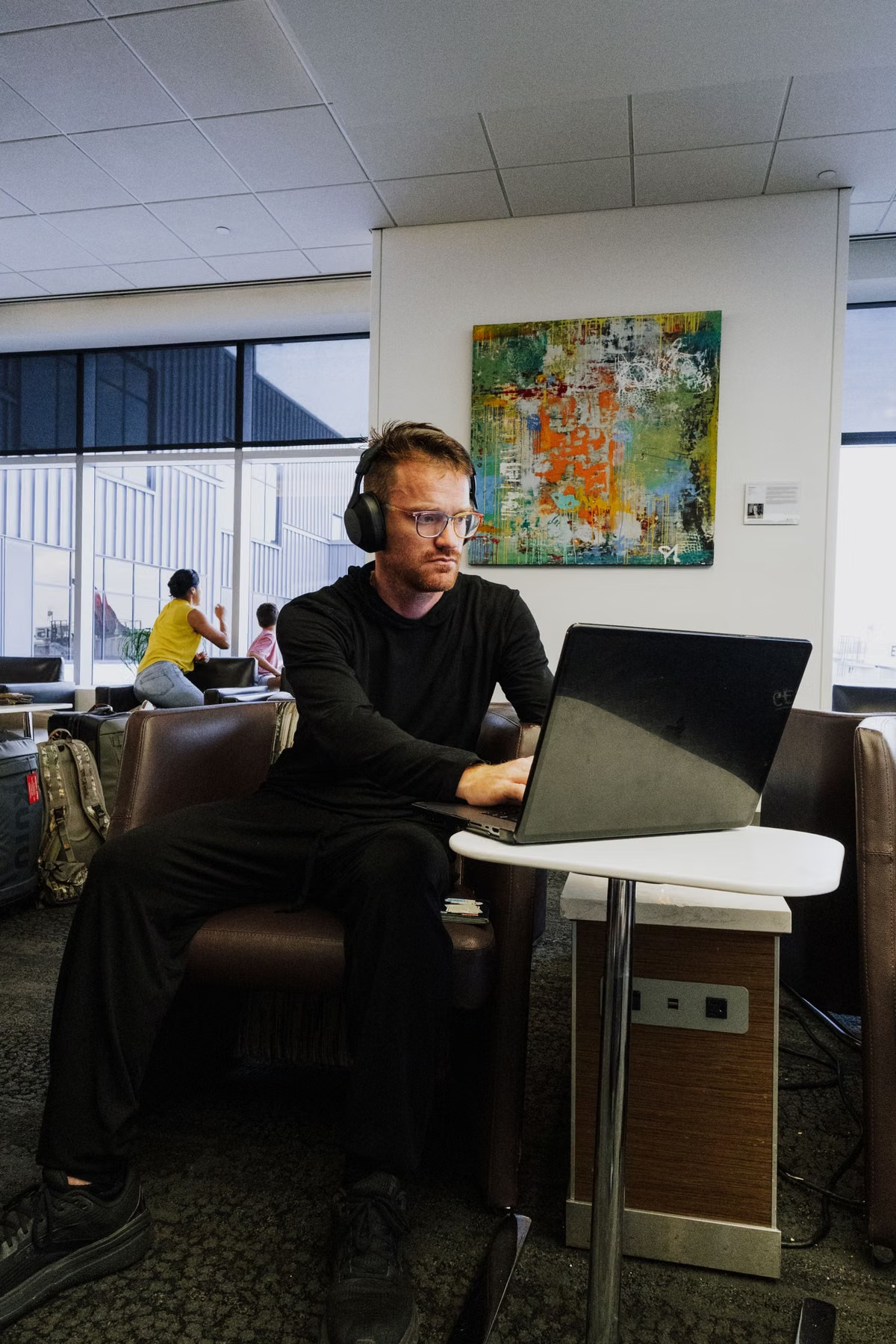
The remote Mac session keeps freezing at the café, and the Wi-Fi portal has already asked for a password.
Fastest solution: public Wi-Fi can be a temporary entry point, but a network password does not make it trusted. Continue only when exposure, authentication, device protection, and recovery checks pass. Otherwise, switch to a personal hotspot or stop sensitive work.
This guide is for:
- Digital nomads carrying only an iPad or lightweight laptop.
- Freelancers working from hotels, airports, cafés, and coworking spaces.
- Small distributed teams setting remote access and device rules.
Public Wi-Fi access needs a pass-or-fail decision
The phrase “public Wi-Fi” covers several different entry points. An open network, a hotel network with a captive portal, a café network with a shared password, and a personal hotspot do not create the same operating conditions.
The first mistake is treating the Wi-Fi login page as proof of security. It only proves that the network has an entry process. It does not confirm that the remote Mac service is private, that the session is protected, or that the local device is safe from people looking over your shoulder.
NIST’s current zero trust guidance starts from the opposite assumption: access should not be trusted merely because a user or device is connecting from a familiar place. Requests should be evaluated by identity, device condition, resource sensitivity, and session behavior. The same principle applies when the “office” is a hotel lobby or airport lounge. See the NIST zero trust architecture guidance and its public Wi-Fi remote worker scenario.
Use this operating rule:
- Continue: the remote Mac is not broadly exposed, the connection path is protected, the account is restricted, the local device is locked, and a backup link is ready.
- Downgrade: the link is usable but unstable. Handle low-risk work only, such as checking status, reviewing a task list, or preparing a local draft.
- Stop: the service is directly exposed, the account controls are unclear, the local device cannot be kept private, or an unexpected login or permission request appears.
Compare the connection before choosing the work
The safest network is not always the fastest one. For remote Mac work, the better question is whether the connection remains predictable long enough to complete the task without exposing credentials, leaving an unlocked session, or interrupting a file operation.
| Connection path | Suitable starting use | Main limitation | Default decision |
|---|---|---|---|
| Open public Wi-Fi | Low-risk browsing and status checks | No network access control | Downgrade unless the remote access path is strongly protected |
| Hotel or café Wi-Fi with a password | Short remote sessions | Shared access and uncertain isolation | Continue only after all checks pass |
| Coworking Wi-Fi | Routine work with controlled accounts | Many nearby devices and changing network conditions | Continue for normal work; switch for sensitive tasks if unstable |
| Personal hotspot | Client files, credentials, and recovery work | Cellular coverage, battery, and data limits | Preferred fallback when public Wi-Fi fails |
| Wired trusted network | Longer sessions and large transfers | Not always available to travelers | Use when available and physically controlled |
This table is a decision aid, not a security ranking for every location. A hotel network may be better configured than a café network, while another hotel may be overloaded or poorly managed. NIST specifically treats remote workers and public Wi-Fi as conditions that require resource-level access controls rather than automatic trust based on network location.
Check exposure before entering credentials
A remote Mac can be difficult to secure if its control service is visible to the public internet or if it accepts more users than necessary. The local Wi-Fi name cannot tell us whether the remote endpoint is exposed. That must be checked in the remote environment or confirmed from the service documentation.
Before connecting from a hotel or café, complete these checks:
- Confirm the remote Mac is accessed through the intended web console, SSH path, VNC path, or private access route.
- Confirm that the service is not intentionally open to every internet address.
- Remove old test accounts and unused sharing permissions.
- Disable screen sharing or remote management when the work period ends.
- Do not accept a new certificate, host key, or login prompt without verifying why it changed.
- Avoid entering credentials into a captive portal or pop-up that is not clearly part of the venue’s normal sign-in process.
Apple’s screen sharing documentation allows administrators to select Only these users instead of opening access to all Mac accounts. It also explains that screen sharing can allow the remote user to view and control the Mac, including files, windows, applications, and restart actions. Review Apple’s screen sharing access settings before using a remote Mac from an untrusted network.
The practical result is simple:
If the remote Mac service is directly exposed or the allowed-user list is unclear, stop before authenticating.
A protected transport path is also necessary. Remote desktop itself is not a complete security model. VNC, SSH, and a browser console describe how the session is delivered, not whether the endpoint is correctly restricted. Use the access method documented by the service operator. If the workflow requires a VPN, private gateway, or another secure connection layer, establish that first.
CISA has also warned that remote access misconfiguration creates business risk and recommends stronger network access approaches with better visibility and control. Its guidance on modern network access security is useful for teams writing a remote access policy.
Restrict identity instead of trusting the network
A shared Wi-Fi password does not authenticate the person operating the remote Mac. The remote account does that. Treat the identity check as a separate control.
Use a named account for each person. Avoid a shared administrator login. Apply the smallest permission set needed for the task. For example, a contractor checking build output should not automatically receive permission to change system settings, install software, or access unrelated project folders.
Check these items before travel:
- Use a unique password for the remote Mac account.
- Turn on additional identity verification when the access service supports it.
- Store recovery codes separately from the travel device.
- Review recent account activity after an unexpected disconnect.
- Remove former team members and temporary accounts.
- Confirm who can approve screen control or remote management requests.
- Do not approve a login request that appears after the session has already started.
This is consistent with NIST’s zero trust model. Location is not a substitute for identity, and a previously approved session should not receive unlimited trust. NIST describes continuous evaluation of access requests and communication behavior over the life of an open connection in its zero trust architecture project description.
For a small distributed team, write the rule in operational language:
- One person, one account.
- One task, one permission scope.
- One session, one expected device.
- Any unusual login, permission prompt, or host identity change requires review.
Protect the device in front of you
The local iPad or lightweight laptop is an access key. It is also visible, portable, and easy to leave behind in a hotel room or airport lounge.
A secure remote Mac cannot compensate for an unlocked travel device. Someone who gains access to the local browser, saved credentials, active session, or copied files may not need to attack the remote Mac directly.
Complete the local device checklist:
- Set a short screen-lock interval.
- Require a password or passcode after the screen locks.
- Install pending operating system and browser security updates before departure.
- Disable automatic login where possible.
- Do not leave a remote session visible while ordering coffee or moving through an airport.
- Use a privacy screen or position the display away from nearby seats.
- Remove downloaded client files after confirming they are stored in the intended location.
- Turn off clipboard sharing if the remote client supports that control.
- Keep the device physically with you during active sessions.
Apple documents that macOS can require a password after the screen saver begins or the display turns off. The same guidance notes that screen locking does not prevent someone from powering off or restarting a Mac, so unsaved work still needs protection. See Apple’s lock screen password settings.
Private Wi-Fi addresses are useful, but their role is narrower than many travelers assume. Apple states that the feature gives the device a different network address for each Wi-Fi network to reduce tracking across locations. It does not replace protected remote access, account security, or screen privacy. Review Apple’s private Wi-Fi address explanation.
If the remote Mac stores sensitive data, its own storage protection also matters. Apple explains that FileVault adds protection against access to encrypted data without the login password. This addresses data stored on the Mac. It does not make a public network, browser session, or unlocked iPad safe. See Apple’s FileVault documentation.
Measure session behavior, not just the speed test
A public network can show a good speed test and still be a poor remote work connection. Remote Mac work depends on sustained responsiveness, not only download capacity.
Observe the session for a few minutes before opening sensitive files:
- Does pointer movement remain responsive?
- Does the screen refresh consistently?
- Are there repeated authentication prompts?
- Does the session reconnect without action?
- Can a small file operation finish and be verified?
- Does the remote Mac remain in the expected state after a brief interruption?
Do not invent a latency or disconnection threshold without testing the exact workflow. Editing text, reviewing a dashboard, compiling code, and moving large design files create different network demands.
Use this sequence when the link becomes unstable:
- Save the current work inside the remote Mac.
- Wait for any visible upload, sync, or commit operation to finish.
- Confirm the file or task state from inside the remote session.
- Lock or disconnect the remote session.
- Move to a personal hotspot, wired network, or another trusted connection.
- Reconnect and verify the remote Mac before continuing.
- Check for duplicate submissions or partial transfers.
Apple supports connecting a Mac to an iPhone or iPad Personal Hotspot through Wi-Fi, Bluetooth, or USB. Its documentation also states that the hotspot uses the device’s cellular connection rather than rebroadcasting an already joined Wi-Fi network. See Apple’s Personal Hotspot connection guide.
For travelers, a hotspot should be prepared before the public network fails. Check the cellular plan, battery level, charging cable, and hotspot password. If the carrier or local coverage is unreliable, carry a second connection option rather than assuming repeated reconnects will solve the problem.
Use this decision tree at the desk
Run these branches in order.
If the remote Mac is reached through a documented protected path, only named accounts are allowed, and the local device is locked and private, continue with normal work.
If the access path passes but the public Wi-Fi keeps dropping, save first, then switch to a personal hotspot or wired connection. Resume only after verifying the session state.
If the network is usable but the task involves highly sensitive client data and the device is visible to nearby people, downgrade the task or relocate.
If screen sharing is open to all users, a new host identity appears without explanation, or the account requests unexpected privileges, stop immediately.
If the local device is missing, stolen, or left unattended while logged in, revoke active sessions and change the relevant credentials from a trusted device.
This gives three outcomes:
- Continue: all critical controls pass.
- Downgrade: only the stability or privacy condition is weak.
- Stop: identity, exposure, or session integrity is uncertain.
FAQ for hotel, café, and airport work
Can a hotel Wi-Fi network expose a remote Mac password?
A hotel Wi-Fi password does not prove that the remote Mac login is protected. The actual controls are the remote service, transport security, account restrictions, and the local device. Use a documented protected connection, unique credentials, and additional verification where available. Do not reuse a password from email, banking, or another work system.
Can customer files be handled on café Wi-Fi?
Yes, but only after the access path and device pass inspection. A café connection may be acceptable for low-risk review work. For confidential files, use a personal hotspot or trusted wired connection when the service is exposed, the session repeatedly reconnects, or people nearby can see the screen. Physical privacy is part of the decision.
Does remote desktop need another security layer?
Yes, when the chosen access method does not already provide a protected and restricted path. Remote desktop describes the control session; it does not automatically prove that the endpoint is private. Use the provider’s documented secure access method, restrict accounts, and confirm that the service is not open to every network address.
Should a personal hotspot replace unstable public Wi-Fi?
Use it when the public connection interrupts work, produces repeated login prompts, or cannot complete a file operation. Save and verify the remote session before switching. A hotspot is not automatically perfect: coverage, battery, carrier terms, and local congestion still matter. It is a controlled fallback, not a guarantee of performance.
Build the fallback before leaving home
A remote Mac is valuable to a digital nomad only when the access plan survives a bad network. Public Wi-Fi often fails in ways that are inconvenient rather than dramatic: a captive portal expires, a hotel access point moves the device, a café becomes crowded, or a short disconnect leaves a transfer incomplete.
Prepare one working fallback path before the trip:
- Connect from the actual iPad or lightweight laptop.
- Test the intended VNC, SSH, or web console path.
- Confirm the account can complete the required task.
- Test the personal hotspot from the same device.
- Verify that the remote Mac remains reachable after switching networks.
- Record the recovery steps in an offline note.
- Keep a separate trusted device available for account recovery.
If the remote Mac is part of a longer travel workflow, review the cloud Mac workstation options before departure. The useful question is not simply whether a Mac is online. It is whether the environment can be reached through the fallback connection, whether permissions are clear, and whether work can resume after the travel device or network changes.
For region-specific planning, the MESHLAUNCH US East Mac access page can be compared with the MESHLAUNCH Japan Mac access page. Treat any regional option as a connectivity choice to test against the real travel route, not as proof that a hotel or airport network will behave the same way everywhere.
A local MacBook still makes sense for people who need offline work, physical ports, predictable battery use, or long-term heavy workloads. But carrying one does not remove public Wi-Fi risk when the Mac itself connects to remote services. The current setup may also leave work tied to one physical device, make recovery slower after theft or damage, and force a traveler to repair the environment while moving between countries. A rented remote Mac can be the cleaner temporary option when the goal is to keep the main macOS workspace online and reach it from an iPad or lightweight laptop. MESHLAUNCH offers a way to evaluate weekly, monthly, or quarterly access around the actual travel period rather than committing to another permanent device.
Before departure, test the public network, the personal hotspot, the remote login, and the recovery sequence as one workflow. If one critical check fails, do not compensate by reconnecting harder. Change the network, reduce the task, or pause until the access path is trustworthy.