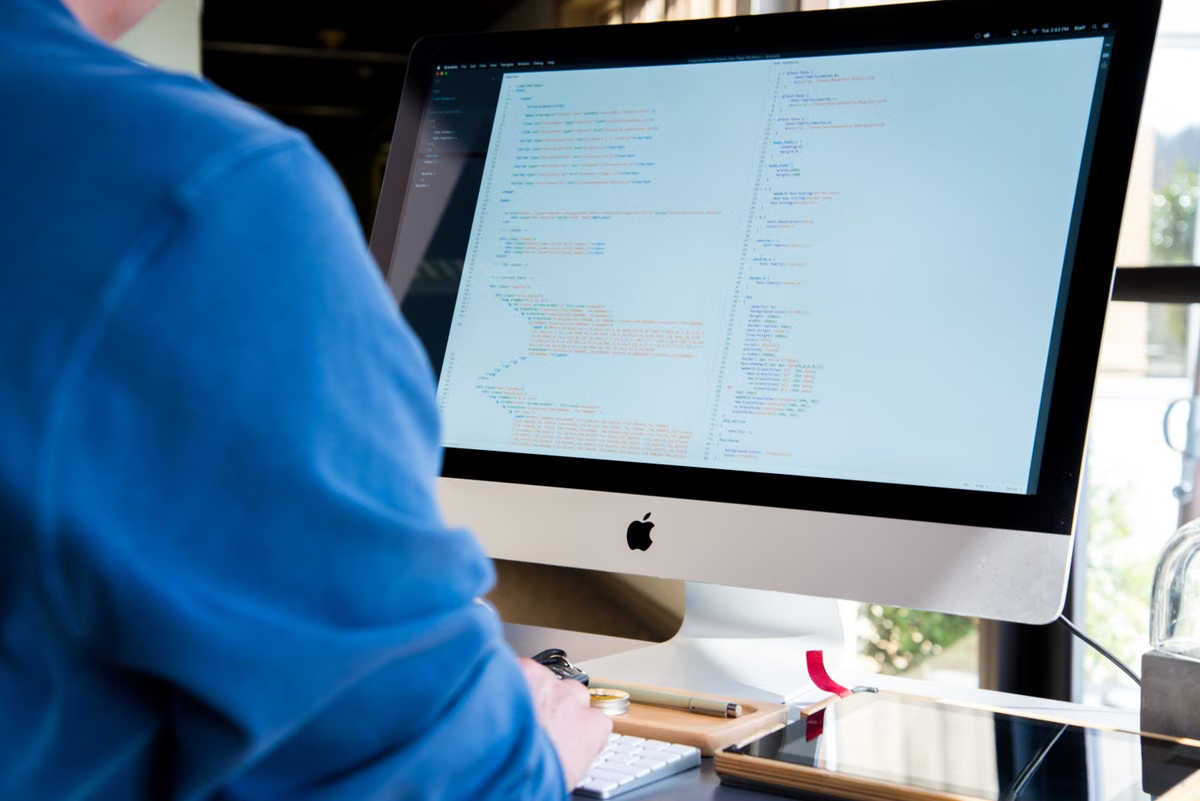
Apple’s release record lists Xcode 27.1 as released on October 15, 2026. (Apple’s Xcode release record) This week, check the course requirements first, confirm the remote Mac meets Xcode 27.1’s macOS requirement, then build your own course project and test its required simulator. Seeing the desktop or opening Xcode is not enough to confirm that the environment can meet your assignment requirements.
This guide is for students with a Windows computer who need to complete an iOS project, students whose course specifies Xcode 27.1, and first-time remote Mac users who want to test the environment before beginning coursework.
Start with the assignment, not the rental listing
A Mac is not automatically necessary for every stage of learning Swift. The right choice depends on what the course expects you to deliver. Read the syllabus, assignment brief, or instructor’s setup instructions before selecting an environment.
If you are practising Swift syntax without an iOS app project, check whether the course actually requires Xcode, SwiftUI, or an iOS simulator. For basic exercises, you may be able to follow the course using the tools it recommends without renting a complete Mac environment. Do not assume that learning Swift by itself means you need Xcode 27.1.
An iOS or SwiftUI project changes the decision. If the course requires you to open an Xcode project, build an app, or run it in an iOS Simulator, you need access to an environment that can perform those tasks. The instructor’s specified Xcode version and project target matter more than a general recommendation for “the latest” setup.
| Course task | What to confirm | What the result tells you |
|---|---|---|
| Learn Swift syntax only | Whether lessons require Xcode or macOS-specific tools | You may not need a full Mac environment yet |
| Complete a SwiftUI or iOS project | Required Xcode version, project target, and run instructions | Check the actual project on a compatible Mac |
| Submit a simulator run or screenshot | Required simulator device and any specified OS version | A successful build alone may not satisfy the task |
| Follow an exact toolchain requirement | Instructor’s version instructions and Apple’s system requirements | Check both before starting |
Before choosing, distinguish three course outcomes. “The code compiles” means the build completed. “The app runs” means it launched in the selected destination. “The assignment is accepted” means the submission meets the instructor’s stated requirements. These can overlap, but they are not interchangeable.
Compare the environment checks that matter
For Xcode 27.1, Apple’s system requirements list macOS Tahoe 26.6 or later. (Apple’s Xcode system requirements) Check the operating system installed on the remote Mac itself. Apple’s guide explains how to find the macOS version on a Mac. (Apple’s instructions for checking macOS)
| Check | What you can verify | What it does not prove |
|---|---|---|
| macOS version | The installed version meets Xcode 27.1’s stated requirement | That your specific course project will build |
| Xcode version | The version shown in the running installation matches the course requirement | That the installation has every required component |
| Project build | Your project completes a build with its selected scheme and destination | That the app runs or meets every marking criterion |
| iOS Simulator | The course-required simulator target is available and can launch your app | That all other simulator models or OS targets are supported |
| Assignment check | The actual output matches the instructor’s instructions | That the environment will remain suitable if course requirements change |
Treat the version check as an entry condition, not a final acceptance result. If Xcode 27.1 is required but the Mac’s installed macOS version is below Tahoe 26.6, stop and ask about a suitable environment before relying on it. If the operating system meets the requirement, continue with the course project rather than assuming compatibility from the system version alone.
Confirm which Xcode build is installed, not merely which version appears in a service description or desktop image. Apple’s release record identifies Xcode 27.1’s release status, and Apple’s Xcode 27.1 release notes provide the associated version information. A Beta, Release Candidate, and released version are not interchangeable when an instructor asks for a particular release. Match the course wording to the installed application’s version information. If the course brief is ambiguous, ask the instructor which build they expect.
A version match still leaves project-specific questions. The project might depend on a particular scheme, SDK, simulator destination, or additional Xcode component. Apple documents how to download and install additional Xcode components, but whether a component is needed depends on your project and course instructions. Check the project you will submit, rather than trying to predict every possible configuration in advance.
Separate a build from a simulator run
A build checks whether Xcode can compile the project for a selected scheme and destination. A simulator run checks whether the resulting app starts on a virtual device. Apple’s documentation covers building and running an app on a simulated or physical device. Use it to understand the distinction, then follow your course’s own submission instructions.
For the simulator check, verify the exact target named by the course. Do not treat “a simulator is available” as proof that the specified device or operating system is available. If the assignment specifies iPhone Duo, for example, check Apple’s iPhone Duo preparation guidance and confirm that the relevant Xcode, SDK, and simulator support are present in the environment. Do not infer support for a particular device from the general Xcode version alone.
If Xcode opens but the course project fails to build, record the exact error and the point at which it appears. Check whether the project’s selected scheme and destination match the course instructions; Apple explains how to customize build schemes for a project. A mismatch may indicate a project selection or environment issue, but the error message is evidence to investigate—not a diagnosis by itself.
A blank project can show that Xcode launches and can perform a basic build. It cannot establish that your course project, required simulator, or submission workflow will work.
Choose the right route for your course
Use these distinctions before you commit to an environment:
- Swift syntax practice only: Follow the course’s recommended tools. Rent a Mac only if the lessons or deliverables require Mac-specific software.
- An Xcode project is required: Confirm the required Xcode and macOS versions, then test the actual project.
- The project must run in iOS Simulator: Check the named simulator target as a separate requirement from the build.
- A specific device or simulator version is named: Verify that exact target and ask the instructor if the requirement is unclear.
- The course does not state a version: Ask which version is expected before making a decision based on a tutorial, an old screenshot, or a classmate’s setup.
If you are deciding between a Windows-only workflow and a Mac environment, keep the assignment’s required actions in view. Editing source files and learning syntax are different from building an iOS app with Xcode or testing it in iOS Simulator. You may be able to complete some study tasks on your existing computer, but you still need a compatible Mac environment for course tasks that explicitly require Xcode. A remote Mac may provide a way to perform those Mac-specific checks without buying a Mac, but its suitability must be established through your own course-level test.
Protect access on school and shared devices
Check your school’s network and device rules before connecting. Confirm that remote access is allowed and that your account can use the connection method provided for the environment. If a school-managed device blocks a connection, do not try to bypass its restrictions. Ask the relevant school administrator or instructor for an approved way to complete the coursework.
On a public or shared computer, avoid saving passwords or leaving an authenticated session open. Keep course files in a location you are permitted to use, and remove local copies from a shared device when you finish. Sign out of the remote session and any personal accounts before leaving the computer. If you are unsure whether a device retains credentials or files, treat it as shared and use the school’s approved security guidance.
These checks do not replace the technical test. They determine whether you are allowed to connect and whether your files and account remain under your control. Resolve access restrictions before beginning the project so they are not confused with Xcode or build problems.
Run a course-level acceptance check
Work through this checklist with the project you will actually use. Keep the assignment instructions beside you so you can compare each result with the required version, destination, and deliverable.
- [ ] Confirm the course task. Mark whether you need Swift practice, an Xcode project build, a simulator run, or a specific submission artifact.
- [ ] Check the required Xcode version. Use the syllabus or instructor’s instructions. If the course specifies Xcode 27.1, verify the installed version rather than relying on a listing or screenshot.
- [ ] Confirm the macOS version. For Xcode 27.1, compare the installed system with Apple’s requirement of macOS Tahoe 26.6 or later.
- [ ] Connect using an approved method. If you are using school-managed hardware or a school network, confirm remote access is permitted.
- [ ] Open your course project. Use the project copy you are allowed to access and note any missing files or components.
- [ ] Check the selected scheme and destination. Compare them with the project instructions before building.
- [ ] Build the project. Record whether it completes and save the exact error text if it does not.
- [ ] Run the required simulator target. Check the device and OS requested by the assignment, not merely whether any simulator opens.
- [ ] Compare the result with the deliverable. Confirm whether the course expects a build, a running app, screenshots, or another specified artifact.
- [ ] Keep evidence for follow-up. Note the installed macOS and Xcode versions, selected destination, and error details that the instructor or support contact may need.
Use the result to choose the next action. If the version requirements match and your course project builds and runs on the required simulator, the environment has passed your practical course check for those tasks. If the version is wrong, pause and ask about a suitable environment. If versions match but the project fails, keep the error and ask whether the project setup or code needs attention. If the simulator target is missing, do not assume that another device is an acceptable substitute; confirm with the instructor.
Frequently asked questions
Does a remote Mac need Xcode 27.1 just because I am learning Swift?
No. Start with the course deliverables. If you are only practising Swift syntax and your lessons do not require Xcode, SwiftUI, or an iOS simulator, you may not need a complete Mac environment for that work. If the course requires an Xcode project or simulator test, check the specified toolchain before deciding.
Is a matching macOS version enough to accept the environment?
No. Meeting Apple’s system requirement makes the installed Xcode version a plausible fit at the operating-system level. It does not confirm that your project opens, that its scheme and destination are correct, or that a required simulator target is available. Test the course project and compare the result with the assignment instructions.
What if the project builds but the simulator will not run it?
Keep the build result and the simulator error separate. Confirm the destination and simulator named in the course, then save the exact message shown by Xcode. A successful build does not prove that the app runs on the required target. Ask your instructor whether a different destination is acceptable before changing the submission plan.
Should I rent a Mac if I only need to edit Swift files?
Not necessarily. If your course only asks you to edit or read Swift files, first check whether its required exercises need Xcode or an iOS simulator. If it does require app builds or simulator runs, test a compatible Mac environment with the actual project. Decide based on the work you must submit, not on the language name alone.
Decide whether to proceed
Using only a Windows computer can leave you without the Mac-specific tools required for an Xcode build or iOS Simulator check. Borrowing a Mac may depend on someone else’s schedule, installed versions, or permission to use the device. Buying a Mac gives you a local machine, but it may be more commitment than you need for a course whose requirements are limited or still uncertain.
A remote Mac is a reasonable option to evaluate when you need temporary access to Xcode, but it is not automatically a match for every course. Confirm the available environment and connection options before beginning. You can review the MESHLAUNCH remote Mac environment information, then use the MESHLAUNCH remote Mac options only after your course-level checks show that the required versions and workflow fit. If the project fails the acceptance test, pause and clarify the requirement rather than assuming that access to a Mac guarantees a passing submission.
Last updated October 16, 2026. Version and system requirement details checked against Apple’s Xcode release record and Xcode system requirements.